
How to Add a Collaborator on Shopify (Step by Step)
Your SEO agency, developer or designer needs access to your store. Handing over your owner login is the wrong way to do it: it gives away everything, including billing and payouts, and you lose any record of who changed what.
A Shopify collaborator account is the right way. It gives a Shopify Partner their own login to your store, limited to the permissions you approve, and it doesn’t count towards your store’s user limit.
Here’s the part that trips most store owners up: you don’t send the invite. Your agency sends a collaborator request, and you approve it. So this guide covers both sides, with screenshots from a live Shopify store we manage. You’ll learn where to find your collaborator request code, which store URL to send, what your agency does with them, and how to approve, edit or remove access later.
What Is a Shopify Collaborator Account?
A collaborator account is a login for a Shopify Partner (an agency, developer, designer or freelancer) that you’ve allowed into your store. Shopify describes collaborators as Partners who you’ve allowed to access your store or organisation. They log in from their own Dev Dashboard or the Shopify mobile app, and you manage and remove their access from your Shopify admin.
A few things make collaborator accounts safer than sharing a login:
- You choose the permissions. The partner requests access to specific areas, and you can trim that back before you accept.
- Two-step authentication is required. Collaborators can’t log in to your store without it.
- They can’t take over the store. You can’t transfer store ownership to a collaborator, and they can’t be given the Administrator store role.
- Access ends cleanly. You can remove a collaborator at any time, and access expires on its own after 90 days without a login.
Collaborator vs Staff Account: Which Do You Need?
Use a staff account for people on your own team. Use a collaborator account for anyone outside the business who has a Shopify Partner account, which covers nearly every agency and developer.
| Collaborator Account | Staff Account | |
|---|---|---|
| Who it’s for | Shopify Partners: agencies, developers, designers, freelancers | Your own employees |
| Counts towards your user limit | No | Yes |
| Who starts the process | The partner sends a request, you approve it | You invite them from your Shopify admin |
| Where they log in | Their Dev Dashboard or the Shopify mobile app | Your Shopify admin |
What You Need Before You Start
Collaborator access takes two people about five minutes. Before you begin, check you have:
- Store owner (or Administrator role) access. Only the store owner and users with the Administrator store role can view collaborator requests and grant access.
- A Shopify Partner account on the agency side. Requests are sent from the Shopify Dev Dashboard.
- Two details to hand over: your 4-digit collaborator request code and your myshopify.com store URL. Steps 1 and 2 show where to find both.
Step 1: Find Your Shopify Collaborator Request Code
Your collaborator request code is a 4-digit code that stops strangers sending you access requests. Only the Partners you share the code with can request access to your store.
- In your Shopify admin, go to Settings, then Users. (If your store isn’t part of an organisation, this may show as Users & permissions.)
- Click Security.
- Scroll to the bottom of the page to the Collaborators section.
- Click the 4-digit code to copy it.
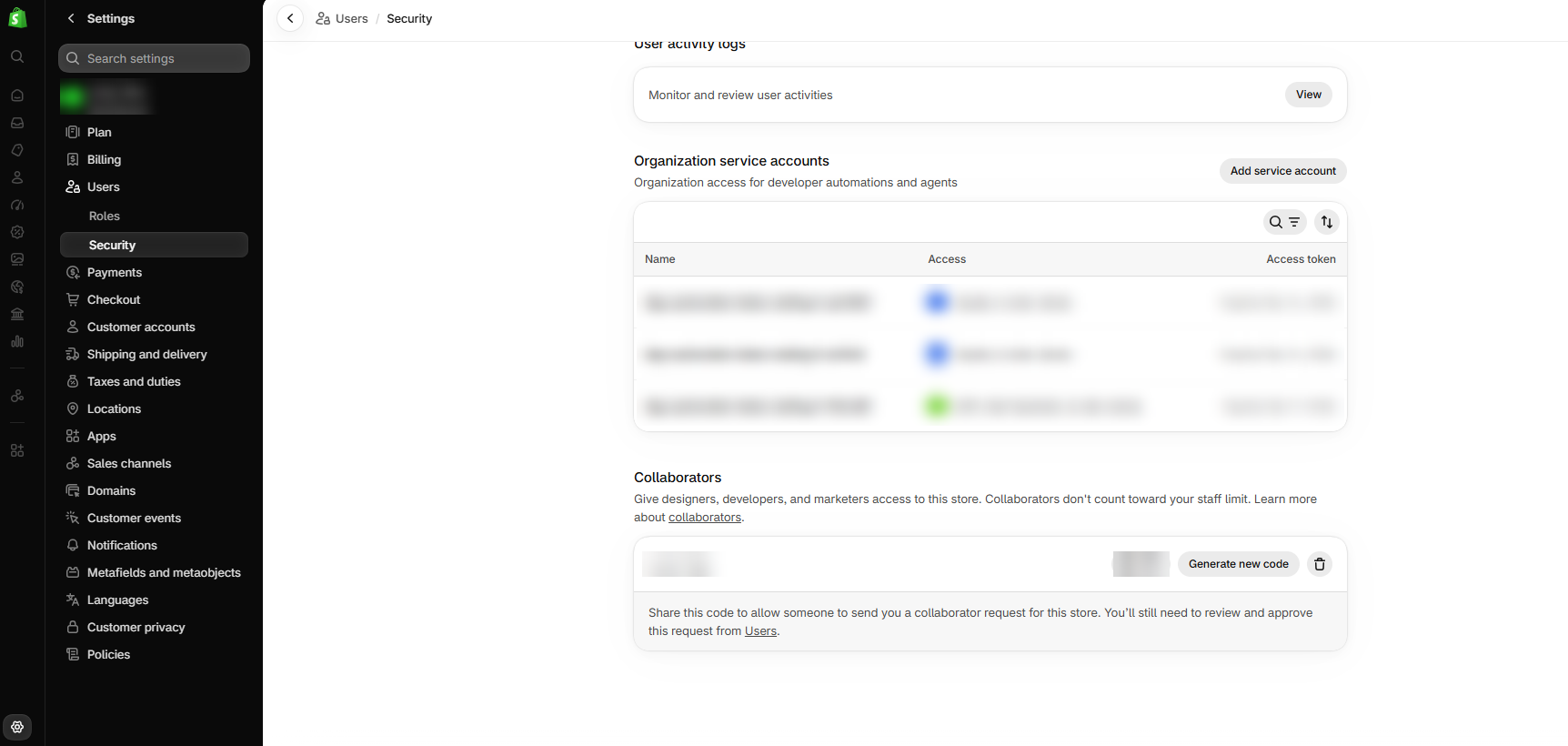
Need to change it? Click Generate new code. The old code stops working straight away, which is a good habit once a project ends.
Step 2: Copy Your myshopify.com Store URL
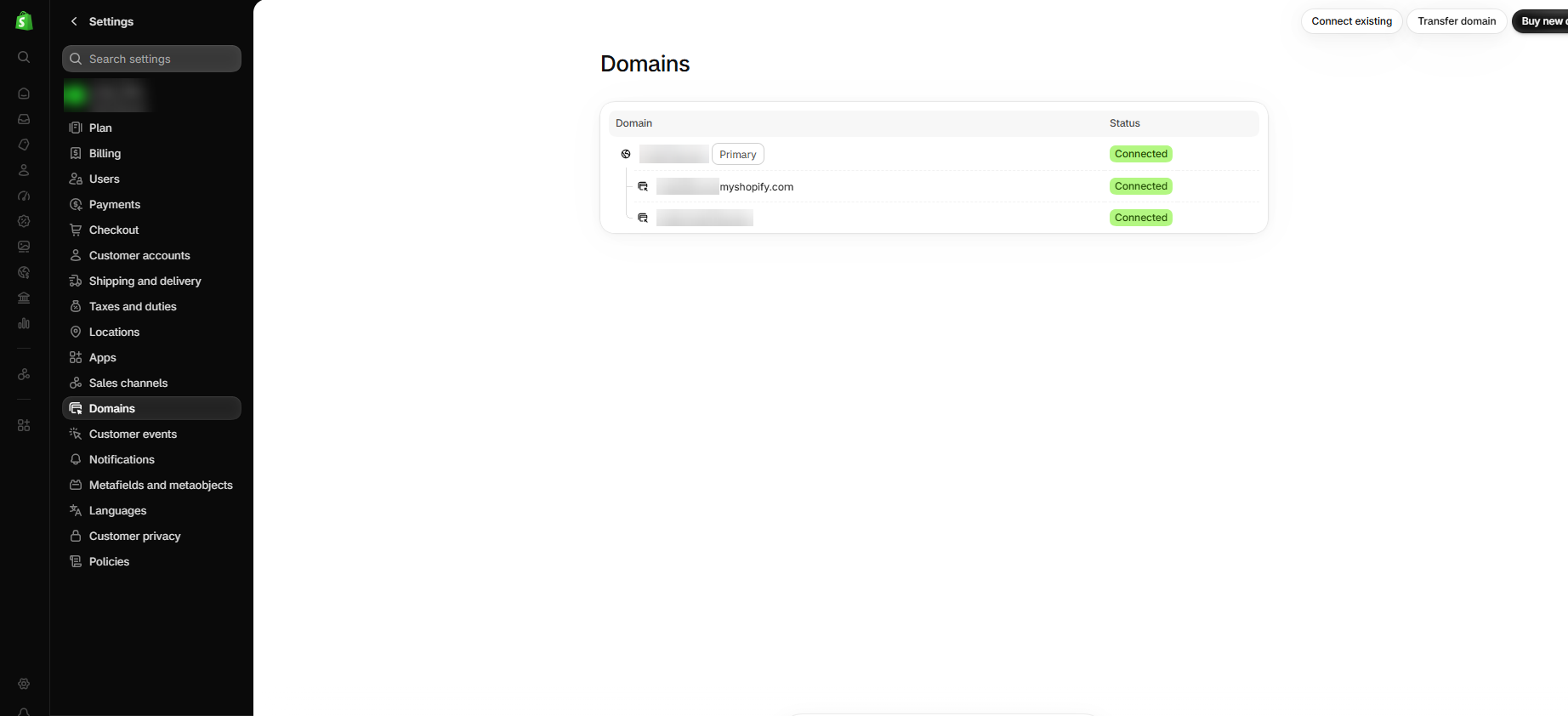
Your agency also needs your store’s permanent myshopify.com address. This isn’t your website domain. It’s the address Shopify gave your store when you opened it, and it never changes, even if you move to a new domain. Shopify’s own documentation asks partners for this permanent myshopify.com URL.
- In your Shopify admin, go to Settings, then Domains.
- Find the address ending in .myshopify.com. It’s listed under your primary domain.
- Copy it and send it to your agency with your collaborator request code.
Step 3: Your Agency Sends the Collaborator Request
This step happens on the agency’s side, in the Shopify Dev Dashboard. If you’re the store owner, there’s nothing to do here except wait for the request. If you’re the agency, this is how to send a collaborator request on Shopify:
- Log in to the Shopify Dev Dashboard and select Stores from the left-hand menu.
- Click Request store access in the top right.

- In Store URL, enter the store’s myshopify.com address.
- Enter the 4-digit collaborator request code from the store owner.
- Under Permissions, tick the areas you need. Each group expands into individual permissions, and Select all ticks everything.
- Click Request access.
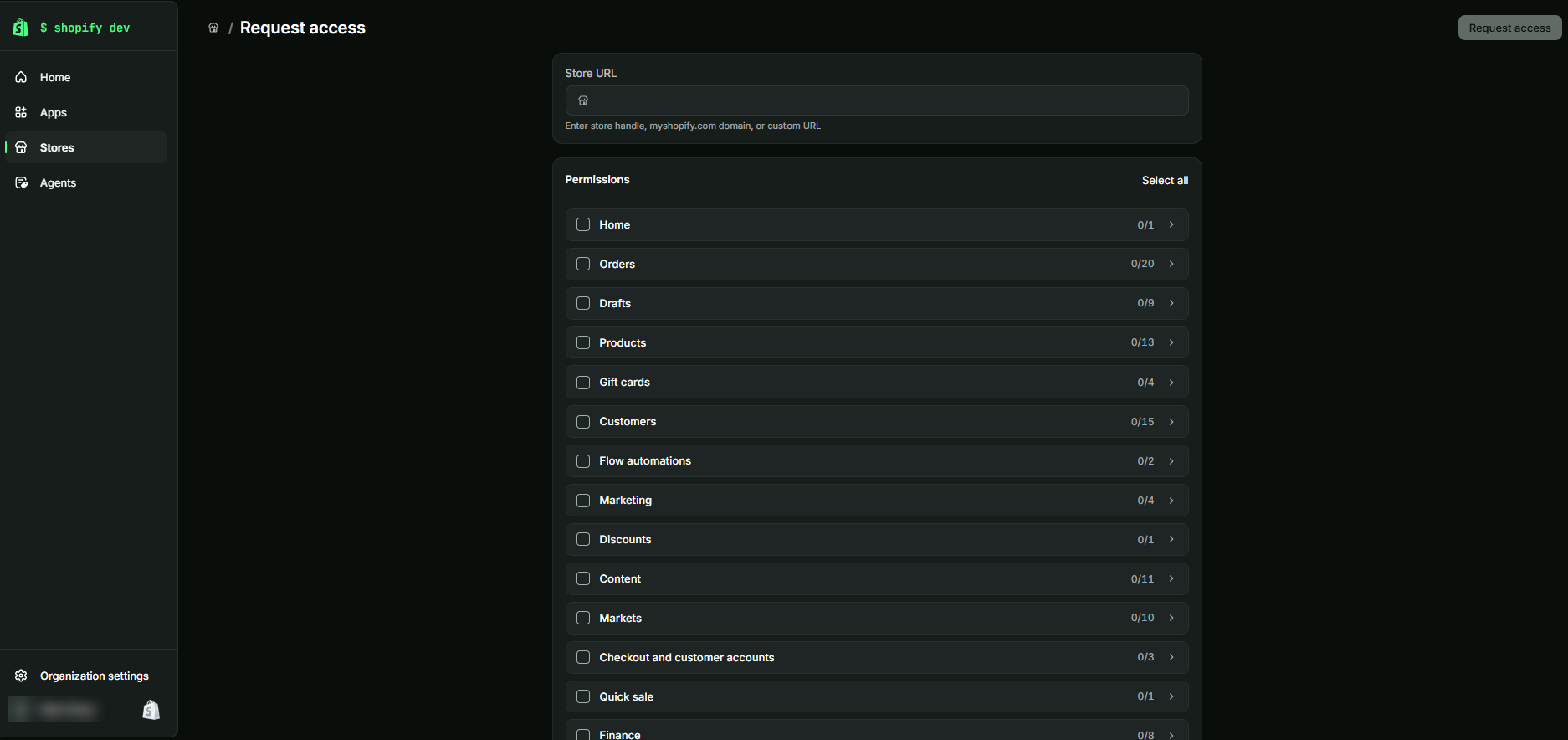
If you’ve used Shopify for a while, you might remember this as Send collaborator request in the old Partner Dashboard. The Dev Dashboard renamed it to Request store access, but it works the same way.
Which Permissions Should an Agency Request?
Only what the work needs. Ticking Select all is quicker, but it also gives access to orders, customer details and finance settings that most projects never touch. The store owner sees every requested permission before approving, and a tight list gets approved faster.
For SEO work, the useful areas are usually products, content and the online store itself: product titles and descriptions, collections, blog posts, pages and theme templates. That’s where Shopify SEO actually happens. Finance, gift cards and customer data rarely need to be part of an SEO engagement.
Step 4: Approve the Collaborator Request
Once the request is sent, you’ll get an email and a notification on your Shopify Home. To approve it:
- Go to Settings, then Users.
- On the Users page, click the Requests status (or filter by Requests).
- Click the request to open it. Check you recognise the partner. Shopify shows details like when they became a partner and where the request was sent from.
- Review the Roles section. Shopify creates a role from the permissions the partner asked for. You can rename it, assign one of your existing roles instead, or remove permissions you don’t want to grant.
- Click Accept request, or Reject request if something doesn’t look right.
That’s it. The collaborator now appears in your Users list, and the store shows as Active in your agency’s Dev Dashboard. They can log in straight away.
Bringing in an agency for your store? Talk to us about Shopify SEO.
How to Edit or Remove a Shopify Collaborator
You stay in control after access is granted. To change what a collaborator can do, go to Settings > Users and click their name to update their role.
To remove a collaborator:
- Go to Settings > Users and click the collaborator’s name.
- If your store is part of an organisation, click Actions, then Remove. If it isn’t, scroll to the Remove collaborator account section and click Remove next to their name.
- Confirm in the dialog.
Removal is permanent and can’t be undone. If you want that partner back later, they’ll need to send a new request.
Does Collaborator Access Expire?
Collaborator access expires when no collaborator from that partner has logged in for 90 days. To bring it back, go to Settings > Users, click the account, then Actions > Reactivate user. For agencies on a monthly retainer this rarely comes up, but it’s worth knowing if work pauses over a quiet season.
Is It Safe to Give Someone Collaborator Access?
Yes, collaborator access is much safer than sharing your login, and it’s the method Shopify built for exactly this situation. The partner has their own credentials, two-step authentication is enforced, and you decide the permissions. To keep it tight:
- Grant the minimum. Approve only the areas the work needs. You can always add more later.
- Check who’s asking. Review the partner details on the request before you accept, especially if you weren’t expecting it.
- Rotate your code. Generate a new collaborator request code after a project ends so old codes can’t be reused.
- Review your users regularly. Remove collaborators you no longer work with. The Security page also has a User activity logs view for checking what’s been changed.
Troubleshooting Shopify Collaborator Requests
Most problems come down to one of these:
- The agency can’t find the request option. It now lives in the Dev Dashboard under Stores > Request store access, not the old Partner Dashboard menu.
- The store URL isn’t accepted. Use the myshopify.com address from Settings > Domains. Shopify’s documentation notes that custom or secondary domains aren’t supported for collaborator requests.
- The code doesn’t work. The store owner may have generated a new one. Copy the current code from Settings > Users > Security.
- The request won’t send. A store can only have two pending collaborator requests at once across all partners. Ask the store owner to accept or reject any waiting requests first.
- “The role name already exists” when accepting. Remove the auto-generated role in the request and assign an existing role instead.
- A rejected request can’t be re-sent. The partner needs to contact Shopify Partner Support to reset it.
- The collaborator can’t log in. Two-step authentication must be turned on for their account.
Get Your Shopify Store Working Harder
Adding a collaborator is a five-minute job: you share your collaborator request code and myshopify.com URL, your agency sends the request, and you approve exactly the permissions you’re comfortable with. No shared passwords, no surprise access, and you can remove it whenever you like.
Once your agency is in, the real work starts: an ecommerce SEO audit, collection pages that rank, a product feed built for Google Shopping, and a store that’s designed to convert. Rank Haus is a Shopify SEO and Google Ads agency, and we start every engagement with collaborator access, never a shared login.
Book a discovery call to see what your Shopify store could be ranking for.
Shopify Collaborator FAQs
How do I add a collaborator on Shopify?
You add a collaborator on Shopify by sharing your collaborator request code and myshopify.com URL with your agency, then approving their request. Find the code under Settings > Users > Security and the URL under Settings > Domains. Your agency sends the request from their Dev Dashboard, and you accept it from the Requests status on your Users page.
Where is the collaborator request code in Shopify?
The collaborator request code in Shopify is under Settings > Users > Security, in the Collaborators section at the bottom of the page. On stores that aren’t part of an organisation the menu may read Users & permissions instead. Click the 4-digit code to copy it, or click Generate new code to replace it.
Do Shopify collaborator accounts count towards my staff limit?
No, Shopify collaborator accounts don’t count towards your store’s user limit. You can give agencies, developers and designers access without using up one of your plan’s staff seats. Staff accounts are for your own team, and those do count towards the limit.
Is a Shopify collaborator account free?
A Shopify collaborator account doesn’t use one of your plan’s staff seats, and Shopify’s help documentation lists no fee for collaborator access. Adding your agency as a collaborator doesn’t push you onto a bigger plan for user numbers. What you pay is whatever you’ve agreed with the agency or developer for their work.
How long does Shopify collaborator access last?
Shopify collaborator access lasts until you remove it, or until no collaborator from that partner has logged in for 90 days. After 90 days of inactivity the access expires. You can restore it from Settings > Users by opening the account and choosing Actions > Reactivate user.
Can a Shopify collaborator become the store owner?
No, a Shopify collaborator can’t become the store owner. Shopify doesn’t allow store or organisation ownership to be transferred to a collaborator account, and collaborators can’t be given the Administrator store role. Ownership and billing stay with you.
How do I remove a collaborator from Shopify?
You remove a collaborator from Shopify under Settings > Users by clicking their name, then choosing Actions > Remove (organisation stores) or Remove in the Remove collaborator account section (single stores). Removal is permanent. If you want to work with them again, they’ll need to send a new collaborator request.

Our Services
SEO Services
Comprehensive, technical, and tailored SEO to grow your organic visibility.
AI SEO & GEO
Get your brand cited in AI Overviews, ChatGPT, and Perplexity.
Local SEO
Dominate your local market with GBP optimisation and local authority.
eCommerce SEO
Collection architecture, product SEO, and conversion-focused strategy.
Google Ads
Targeted campaigns built on data. Your budget put to work.
Web Design
Sites designed to convert, built to scale, and ready to grow with you.


